TV says “No signal” — switch the input back
A game console or streaming stick can leave the TV on the wrong input. This is the sort of guide that works best with a photo of the remote you actually use.
Step 1
Turn on the TV and the usual box
If you normally watch through a cable or satellite box, make sure its power light is on too.
Step 2
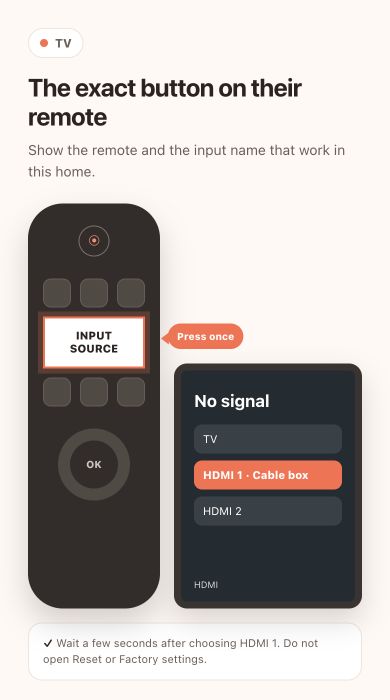 Press Input or Source once
Look for “Input”, “Source”, or a rectangle with an arrow. Press it once and wait for the list to appear.
Press Input or Source once
Look for “Input”, “Source”, or a rectangle with an arrow. Press it once and wait for the list to appear.
Press Input or Source once
Look for “Input”, “Source”, or a rectangle with an arrow. Press it once and wait for the list to appear.
Step 3
Choose the input you normally use
For a cable box or streaming stick this is often HDMI 1 or HDMI 2. Pause a few seconds on each choice so the picture has time to appear.
⚠️ WarningDo not choose Reset or Factory settingsThose options can erase channels and sign-ins. You only need the short Input or Source list.
Step 4
If it still says “No signal”, check the cable
Make sure the usual box is on and its HDMI cable is firmly connected at both ends. Then choose that HDMI input again.
Step 5
Leave it on the working picture
Once the channel or home screen appears, stop pressing buttons. The TV will usually remember this input next time.
Put what you know, your stories, or your favorite things into cards. Share them with a link anyone can open, no account needed.
Start on Stepzu